Working from home sounds simple until your desk turns into your office, meeting room, storage closet, and IT department all at once.
Then the small annoyances start stacking up. Your laptop sits too low, your wrists ache by mid-afternoon, cables snake across the floor, and you’ve been wearing headphones since breakfast.
Most desk setup advice leans on aesthetics or expensive gear, which doesn’t help much when your neck hurts. This guide covers accessories that earn their space by easing discomfort, clutter, fatigue, or the small frictions you hit every day.

Some links in this article may be affiliate links, which means I may earn a small commission if you buy through them, at no extra cost to you. Recommendations are based on product research, specifications, reviews, and how useful an item is in real daily use.
Check what you already own before you buy anything
Plenty of workspace problems can be fixed for free, and it’s worth trying that first.
- Raise your screen. A stack of sturdy books under a laptop or monitor can get you to a more comfortable viewing height today.
- Adjust your chair. Seat height and backrest angle are often set wrong and never touched again.
- Move your everyday items closer. Pens, notebooks, and your phone should sit within easy reach.
- Clear out unused cables and gadgets. Anything you haven’t touched in months is just taking up room.
- Work with your current lighting. Shifting your desk or angling a lamp can make a surprising difference.
- Build in movement breaks. Standing up and stretching during long sessions helps more than most gadgets.
A good rule of thumb is to buy an accessory when it solves a recurring problem you can’t reasonably fix with what you already have.
Ergonomics first, because discomfort ruins good workdays
A productive morning can turn into a miserable afternoon when your back, neck, or wrists start complaining. You don’t need a perfect ergonomic workstation for this to work.
The aim is to remove the biggest sources of unnecessary strain, one at a time.
1. An ergonomic chair gives your back some backup
Poor seating can contribute to discomfort over long stretches at a desk, and a kitchen chair that felt fine for an hour usually stops feeling fine by hour five.
What to look for:
- Adjustable seat height
- Lumbar support
- Adjustable backrest
- Appropriate seat depth
- Comfortable cushioning
GABRYLLY ergonomic mesh office chair
Approx. price: around $219 to $240

- Best for: People who sit 4 to 8 hours a day and want a fully adjustable chair.
- Why I picked it: The 3-year warranty is reassuring at this price, and reviewers say it feels comfortable both upright and reclined.
- Key features: Mesh back and seat for airflow; adjustable height, tilt, and seat tension; fittable head rest.
If you’re at your desk for 4 to 8 hours a day, this chair gives you a lot to work with.
The mesh back and seat keep air moving, and you can sit fully upright for support or lean back when you need a break, since it reclines quite far. A front knob sets how firmly the backrest pushes back.
The head rest takes a little fiddling to fit your head, but it ends up surprisingly comfortable, and the whole chair goes together in about 15 to 20 minutes with the tools included.
- What to consider before buying: It’s recommended for people between 5’2“ and 6’1“, so check your height and weight first.
- Verdict: A solid pick for full-time desk workers in that height range. Skip it if you’re outside it.
2. A laptop stand or monitor riser lifts your screen to eye level
Looking down at a screen all day is a quick way to end up with a sore neck. A stand raises the screen so you’re not constantly tilting your head.
Laptop stands work best when paired with an external keyboard and mouse. On their own, they can make the built-in keyboard awkward to reach, which swaps one problem for another.
What to look for:
- Stable construction
- Appropriate height
- Adjustability if you need it
- Weight capacity
- Foldability if you travel with it
Aluminum adjustable laptop stand
Approx. price: around $28 to $35

- Best for: Laptop users who want their screen at eye level next to an external monitor.
- Why I picked it: It’s lightweight but sturdy, and the vented base helps with heat.
- Key features: Fits laptops from 10“ to 17.3“; vented aluminum base; anti-skid silicone pads.
If your laptop sits too low and your neck pays for it, this aluminum stand lifts it to eye level, with enough room underneath to tuck away gear like an audio interface. It’s light yet sturdy, the rubber pads keep it steady while you type, and the vented base lets heat escape.
Adjusting the angle takes a little arm strength, though it stays put once you’ve set it. And the vented base lets heat escape, which is handy if your laptop runs warm.
- What to consider before buying: Raising the screen works best with an external keyboard and mouse, otherwise the built-in keyboard gets awkward to reach.
- Verdict: Great value for most laptop users. Skip it if you only use the laptop on its own.
3. A monitor arm frees up desk space and gives you control over placement
A monitor stand is simpler and usually cheaper, so it suits people who just want a bit more height. A monitor arm makes more sense if desk space and flexibility matter to you, since you can adjust height, angle, and distance, and the desk surface underneath stays free.
What to look for:
- VESA compatibility
- Weight capacity
- Height adjustment
- Tilt and swivel range
- Clamp quality
- Single or dual monitor support
Huanuo single monitor arm
Approx. price: around $35 to $48

- Best for: Anyone with an external monitor who wants more adjustability and a clearer desk.
- Why I picked it: It’s cheaper than most arms with this much movement.
- Key features: Tilt from -50° to +85°, ±90° swivel, 360° rotation; C-clamp or grommet mounting; adjustable lift tension.
This arm is great for anyone who wants a monitor that moves where they need it and a clear desk underneath. It tilts, swivels, and rotates, holds steady at any angle, and one hand is enough to lift the screen.
Setup takes about 3 minutes, with clamp and grommet options in the box, and you set the lift tension to match your monitor’s weight.
- What to consider before buying: Desk thickness should fall between 0.59“ and 3.54“, and a wood tabletop with nothing underneath in the way works best. Check your monitor’s weight and VESA pattern against the listing too.
- Verdict: A strong budget choice. Skip it if your desk is glass or has beams underneath.
4. A keyboard and mouse that fit your hands take pressure off your wrists
Instead of treating these as separate purchases, think of them as one decision. If your wrists feel it after long typing or mousing sessions, this pair is a good place to start.
4A. Ergonomic or split keyboard
A split or tented layout can make wrist positioning more comfortable during long typing sessions, though there’s usually a short learning curve.
What to look for:
- Comfortable key layout
- Split or tent design that suits you
- Wired or wireless
- Device compatibility
- How steep the learning curve feels
4B. Vertical mouse
A vertical mouse holds your hand in a handshake position, which some people find easier on the wrist than a traditional flat mouse.
What to look for:
- Hand size compatibility
- Button placement
- Wired or wireless connection
- DPI adjustment
- Ergonomic shape
Logitech Lift vertical ergonomic mouse
Approx. price: around $67 to $80

- Best for: Heavy mouse users dealing with wrist discomfort.
- Why I picked it: The vertical grip keeps your hand and forearm in a more natural position instead of rotating your palm downward.
- Key features: Vertical ergonomic shape; customizable buttons; wireless connection.
If a regular mouse leaves your wrist sore, the Logitech Lift is worth a look. The vertical shape keeps your hand and forearm in a natural position instead of twisting your palm downward, and buyers who dealt with wrist pain say it faded after switching.
It’s wireless with excellent battery life, the buttons can be customized to speed up everyday tasks, and a left-handed version exists.
- What to consider before buying: It’s designed for small to medium hands, so larger hands may want a bigger model.
- Verdict: Worth it if your wrist bothers you. Skip it if a regular mouse feels fine.
What about wrist rests?
A wrist rest can help in some setups, but it works better as a small add-on than a must-have, especially if you already have an ergonomic keyboard and mouse.
5. An under-desk footrest helps when your chair and desk don’t line up
If your feet don’t rest flat on the floor, or your desk height forces you to sit awkwardly, a footrest gives your legs somewhere comfortable to land.
What to look for:
- Appropriate height
- Stable base
- Non-slip surface
- Adjustable angle, if that’s useful to you
Memory foam footrest
Approx. price: around $29 to $38

- Best for: People whose feet don’t rest comfortably on the floor, especially during long meetings.
- Why I picked it: The foam is soft but still supportive.
- Key features: Memory foam surface; usable in different positions; grippy beads on the base.
If your feet dangle or your legs feel tense during long meetings, this memory foam footrest gives them a soft but supportive place to land.
The height works well for sitting a long time, and you can use it in different positions depending on what feels best.
Little grippy beads on the bottom help it stay put, though they don’t grip as firmly as you might hope.
- What to consider before buying: Check that the height suits your chair and desk, since a footrest that’s too tall can be as uncomfortable as no footrest.
- Verdict: A good fix for fixed desk and chair setups. Skip it if your feet already rest flat.
6. An anti-fatigue mat only earns its place if you actually stand
This one is only worth considering if you regularly work at a standing desk. If you sit all day, skip it.
What to look for:
- Thickness
- Stability
- Surface texture
- Easy cleaning
- Appropriate dimensions
ComfiLife anti-fatigue mat
Approx. price: around $49 to $53

- Best for: Standing desk users who spend long stretches on their feet.
- Why I picked it: Reviewers say it stays in place, cleans easily, and feels worth the price.
- Key features: 3/4“ high-density memory foam; beveled edges; several color options.
If you work standing up, this mat takes pressure off your feet, knees, and back with 3/4“ of dense memory foam.
It stays put without sliding, the beveled edges keep you from catching a foot, and it’s easy to clean, comes in plenty of colors and holds its support over time, which makes the price easier to justify.
- What to consider before buying: Measure your standing area so the mat fits the space you really use.
- Verdict: A comfortable choice for standing desk users. Skip it if you mostly sit.
Clear the clutter and the daily friction
A workspace doesn’t have to be minimalist. It just needs to make the things you use regularly easy to reach, and the things you don’t use much easy to ignore.
7. A USB-C or Thunderbolt dock turns your laptop into a proper workstation
Instead of plugging in and unplugging six different things every time you sit down, one cable connects your monitor, keyboard, mouse, external storage, Ethernet, and other USB devices.
What to look for:
- Number and type of ports
- USB-C power delivery
- HDMI or DisplayPort support
- SD card reader, if you need one
- Ethernet
- Compatibility with your laptop
- Power requirements
USB-C hub with HDMI
Approx. price: around $40 to $54

- Best for: MacBook and other port-limited laptop users who want to plug in once and get working.
- Why I picked it: It replaces a pile of separate adapters with one compact unit.
- Key features: HDMI output for an external monitor; USB ports and an SD card slot; pass-through charging.
This hub is great for anyone tired of carrying a bag of adapters. HDMI, USB ports, and an SD card slot all live in one compact unit, so one connection gets your monitor, keyboard, mouse, and flash drives running.
Pass-through charging keeps a MacBook powered at the same time. It can get a little warm during long sessions, which is normal for a small hub doing this much.
- What to consider before buying: Check the port types and count against what you actually plug in, and confirm the charging wattage suits your laptop.
- Verdict: A handy, affordable upgrade. Skip it if your laptop already has all the ports you use.
8. A USB switch lets two computers share one set of peripherals
If you juggle a work laptop and a personal desktop, a USB switch saves you from swapping cables every time you change machines. If you only use one computer, you can skip this one without a second thought.
What to look for:
- Number of ports
- USB standard
- Switching method
- Compatibility
- Power requirements
USB switch
Approx. price: around $17 to $24

- Best for: People sharing one keyboard and mouse between two computers.
- Why I picked it: It’s plug and play and ends the cable-swapping routine.
- Key features: One-button switching; small desktop switchboard; passes power through.
If you share one keyboard and mouse across two computers, a USB switch ends the constant unplugging. You press a button and everything moves to the other machine, with decent latency and power still passing through.
Setup is plug and play, and it’s small enough to sit neatly on your desk. The LEDs are hard to see, the ports can sit at an odd angle, and a webcam struggled with the bandwidth, so keep it for keyboard, mouse, and microphone duty.
- What to consider before buying: It handles a keyboard, mouse, and microphone well, but bandwidth-heavy devices like webcams may not run smoothly.
- Verdict: Great for two-computer setups. Skip it if you only use one machine.
9. An under-desk cable tray gets power bricks off the floor
Cables and power strips on the floor collect dust, get kicked, and make cleaning a hassle. A tray mounted under your desk tucks all of it out of sight.
What to look for:
- Weight capacity
- Mounting method
- Width and depth
- Cable access
- Compatibility with your desk
Under-desk cable tray
Approx. price: around $13 to $17

- Best for: Anyone whose power strip and cables keep ending up on the floor.
- Why I picked it: It’s sturdy and cheap enough to be a low-risk way to clean up your desk.
- Key features: Fully welded, powder-coated metal; holds up to 10 lbs; mounts inward or outward.
This tray is a cheap way to get cables and power bricks off the floor. It mounts inward or outward, holds up to 10 lbs, and the fully welded, powder-coated metal feels sturdy and resists rust.
Velcro ties and anti-scratch pads come in the box, which makes setup easy. It suits small to medium bundles of cables rather than a huge tangle.
- What to consider before buying: Check that your desk has a flat underside where the clips can grip, and remember it suits modest cable loads rather than a full server rack.
- Verdict: A practical, budget-friendly fix. Skip it if you already have a clean cable setup.
10. A desk shelf adds storage without eating your desk surface
Going vertical gives speakers, notebooks, your phone, and other everyday items a place to live while your actual work surface stays clear.
What to look for:
- Weight capacity
- Width
- Depth
- Cable routing
- Monitor compatibility
WALI multi-tier desk organizer
Approx. price: around $16 to $18

- Best for: People whose desk is buried under files, notebooks, and supplies.
- Why I picked it: It packs a lot of storage into a small footprint.
- Key features: 4 letter trays and a file folder organizer; 2 metal pen holders; sliding divided drawer.
If papers and supplies keep spilling across your desk, this organizer gives everything a home.
Four letter trays, a vertical file holder, two pen holders, and a sliding drawer hold files, notebooks, pens, and sticky notes without sprawling.
It goes together easily, feels sturdy, and takes less desk space than you’d expect.
- What to consider before buying: Measure your desk depth first, and note that it organizes supplies rather than lifting a monitor or holding speakers.
- Verdict: A good pick for paper-heavy desks. Skip it if you want a riser for a monitor.
11. A document holder keeps papers within easy reach
If you regularly work from printed pages, take notes from books, or follow written instructions, a holder saves you from constantly digging through stacks on your desk.
What to look for:
- Tray counts and angles
- Freestanding vs. wall-mount options
- Stability and material quality
6-tray wall-mount or freestanding organizer
Approx. price: around $30

- Best for: People sorting mail, folders, and paperwork who want it off the desk.
- Why I picked it: It holds a lot without wobbling, and the wall-mount option clears desk space altogether.
- Key features: 5 tilted trays plus 1 flat bottom tray; wall-mount or freestanding use; anti-slip feet.
If loose papers and mail keep piling up, this organizer sorts them without wobbling or warping, even when it’s full.
The angled mesh trays make everything easy to grab, and the bottom shelf handles odd-sized items. You can stand it on your desk or hang it on the wall with the included hardware, which is a nice way to free up desk space.
- What to consider before buying: This sorts papers rather than holding one page at eye level, so it won’t replace a copy stand. Wall mounting also means making holes in drywall.
- Verdict: Handy for paper-heavy work. Skip it if you mainly need a single reading stand.
Ease screen, audio, and video call fatigue
Long days of screens and calls wear you down in ways that are easy to overlook. A few well-chosen accessories can take the edge off.
12. A monitor light bar adds focused light without crowding your desk
It sits on top of your monitor and lights your desk surface, so you can see your keyboard and notes without a bulky lamp taking up space.
What to look for:
- Brightness adjustment
- Color temperature adjustment
- Monitor compatibility
- Glare control
- Easy controls
Monitor light bar with remote
Approx. price: around $39

- Best for: Screen-heavy work during the day or late at night.
- Why I picked it: It lights a keyboard well without taking up desk space.
- Key features: Several brightness levels; warm to cool color temperature; auto-dimming option and included remote.
A light bar is great if you work late or your desk is poorly lit. This one lights up your keyboard well, with several brightness levels and warm to cool color temperatures, so you can go from a relaxed lamp glow to a bright work light.
The remote is a nice extra, and installation is simple. The remote’s power button stays lit even when the light is off, which might bother you if you like a fully dark room.
- What to consider before buying: Check that the clip fits your monitor’s top edge, especially if it’s curved or very thin.
- Verdict: A smart buy for evening workers. Skip it if you want a completely dark room.
13. Desktop speakers give your ears a break from headphones
Headphones all day can get tiring. If you work alone and don’t need privacy for meetings or videos, speakers let you take them off for a while.
What to look for:
- Desk footprint
- Connection options
- Sound quality
- Volume control
- Power requirements
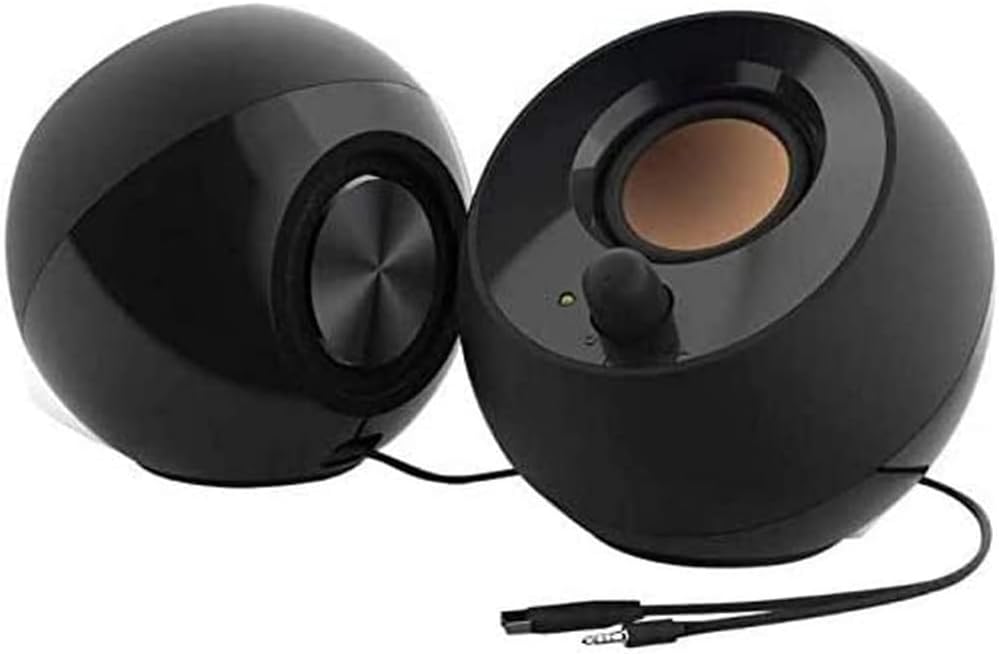
USB-powered desktop speakers
Approx. price: around $20 to $25
- Best for: Home workers who want an alternative to headphones all day.
- Why I picked it: They’re small, simple, and good value.
- Key features: USB powered, with no power adapter; compact size; plug and play.
If you’re tired of headphones, these USB speakers are an easy swap. They get surprisingly loud for their size, the highs are clear, and there’s enough bass to make music and videos enjoyable.
USB power means no bulky adapter, and they take up very little desk space. Both speakers share one permanent wire, which limits placement and makes cable management a little fiddly.
- What to consider before buying: They suit casual listening and video calls better than critical music work.
- Verdict: A good budget option for working at home. Skip it if you need deep bass or wide speaker placement.
14. An external webcam makes video calls look better and gives you more flexibility
Most built-in laptop cameras are fairly basic. A separate webcam usually improves picture quality, and it lets you position your setup the way you want.
What to look for:
- Resolution
- Autofocus
- Microphone quality
- Privacy shutter
- Mounting options
- USB compatibility
Plug-and-play webcam
Approx. price: around $27 to $40
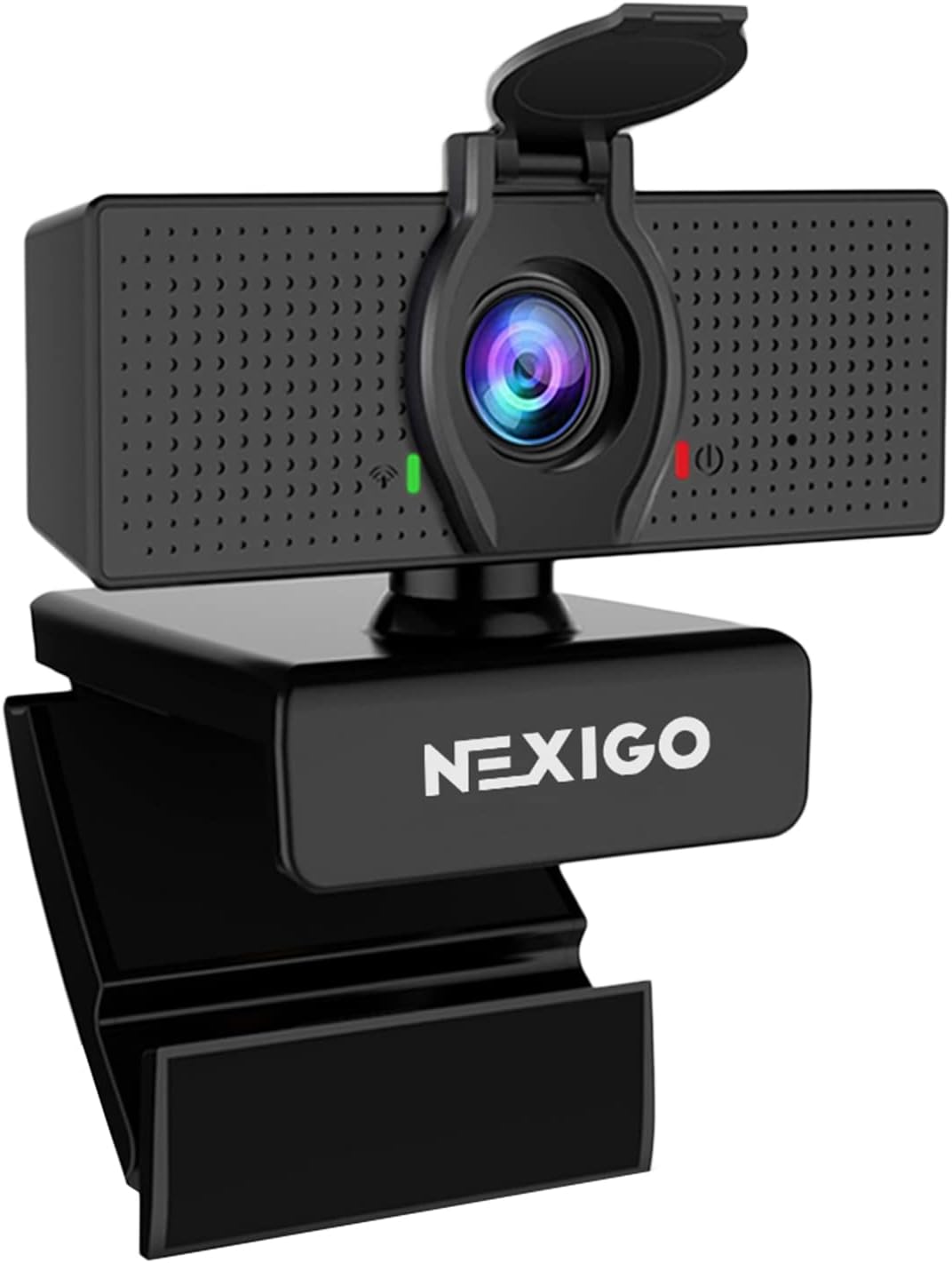
- Best for: Freelancers who spend a lot of time on client calls.
- Why I picked it: It works right away with no software, and the picture suits professional calls.
- Key features: Plug and play; built-in microphone; privacy cap and standard mount.
This webcam is great for better video calls without any setup. Plug it in and it works, with no software needed, and the picture quality suits professional calls.
The built-in microphone is decent, the privacy cap is a nice touch, and the basic software lets you adjust for different lighting. The field of view is wide, which helps in a tight space and might show more of your room than you’d like.
- What to consider before buying: Check the listed resolution, and consider a separate microphone if audio matters a lot.
- Verdict: A solid value pick for everyday calls. Skip it if you need a tight frame or studio-quality sound.
15. Blue-light glasses are optional, so treat them that way
Some people like wearing them as part of their screen-time routine, and that’s a perfectly fine reason to try a pair. The evidence behind big claims about preventing or treating eye problems is limited, so I wouldn’t count on them to fix anything on their own.
What to consider:
- Lens quality
- Comfort and fit
- Anti-reflective coating
- Whether they address your particular screen discomfort
Blue-light glasses
Approx. price: around $21

- Best for: People who like the idea and want to try a pair with realistic expectations.
- Why I picked it: They’re lightweight and comfortable, and the case, bag, and cloth make the price fair.
- Key features: Stretchy, adjustable arms; lightweight frame; hard case included.
If you want to try blue-light glasses, these are lightweight and comfortable, with stretchy arms that fit different head sizes and a clean, casual style.
One buyer who spends long hours on screens noticed less eye strain later in the day, though evidence for this is limited, so treat any relief as a bonus.
The lens tint is darker than some people hoped, and the lenses can look quite reflective.
- What to consider before buying: Any relief is a personal bonus, since evidence for blue-light lenses is limited.
- Verdict: A low-risk optional extra. Skip it if you want a proven fix for eye strain.
Stay focused with simple tools instead of more apps
You don’t need another productivity system. A few inexpensive physical tools can cut down on digital distractions without adding anything else to maintain.
16. A physical Pomodoro timer lets you time work without picking up your phone
Sometimes opening your phone to start a timer is how a quick check turns into twenty minutes of scrolling. A timer that sits on your desk avoids that entirely.
What to look for:
- Easy controls
- Clear display
- Audible and quiet modes
- Battery life
- Desk footprint
Gravity-sensor Pomodoro timer
Approx. price: around $16 to $20

- Best for: People who get pulled off task by their phone.
- Why I picked it: Flipping it starts a session straight away, so there are no settings to fiddle with.
- Key features: Preset 5 and 25 minute modes; gravity sensor that starts when flipped; silent vibration mode.
This cube is great if your phone keeps pulling you off task. Presets for 5 and 25 minutes mean you flip it and start working, with no settings to fiddle with.
A silent vibration mode suits deep work, and you can set custom times for longer sessions. It’s small enough to carry between your desk and meetings.
- What to consider before buying: It only handles timing, so try a free kitchen timer first if you’re unsure the technique suits you.
- Verdict: A cheap, simple focus tool. Skip it if you don’t use timed work sessions.
17. An analog notebook gives quick thoughts somewhere screen-free to go
There’s no special winner here. The best notebook is simply the one you’ll actually reach for when a task, idea, or reminder pops into your head.
Amazon Basics Classic notebook
Approx. price: around $6

- Best for: Quick notes, tasks, and ideas away from your screen.
- Why I picked it: It’s a dependable, inexpensive notebook, so there’s no pressure to keep it neat.
- Key features: 240 lined pages; ribbon bookmark and elastic closure; acid-free paper.
This notebook is a no-fuss place for tasks, ideas, and quick sketches. It has 240 lined pages of smooth, acid-free paper that ink doesn’t bleed through, plus a ribbon bookmark and an elastic closure.
It’s sturdy enough for daily use and comes in several colors.
- What to consider before buying: It has lined pages and a cardboard cover, so if you sketch or plan visually you might prefer dotted or blank pages.
- Verdict: A cheap way to get thoughts off your screen. Skip it if you want a premium or specialty notebook.
Protect your work, because you’re your own IT department
When you work for yourself, losing important files hurts more, since there’s nobody on call to rescue them.
18. Automated backup keeps your files safe if your computer fails
If your computer dies, gets damaged, or goes missing, a backup that runs on its own means you don’t have to remember to do anything.
What to look for:
- Automatic backups
- File version history
- Cross-device access
- Storage capacity
- Recovery options
- Encryption and security features
Home NAS storage device
Approx. price: around $230 to $380

- Best for: Freelancers who want files, photos, and backups gathered in one place they control.
- Why I picked it: Setup is straightforward, and it runs quietly in the background.
- Key features: Shared folders; remote access when you’re away; flexible backup and storage management.
If you want your files, photos, and backups in one place you control, a home NAS does that. Setup is straightforward, shared folders are ready quickly, and transfers and backups run quietly in the background.
Remote access lets you reach your files away from home without building a VPN. Since everything is stored at home, add an off-site copy for real protection.
- What to consider before buying: A NAS stores data at home, so it won’t protect you from fire or theft unless you add an off-site copy. Check whether drives are included too.
- Verdict: A good pick for people who want control. Skip it if you want a simple, off-site cloud service.
19. A compact external SSD adds fast portable storage and an extra layer of backup
It’s handy for moving large files around, and it works well alongside cloud backup rather than in place of it.
What to look for:
- Storage capacity
- Read and write speeds
- USB interface
- Durability
- Portability
- Warranty
Portable SSD
Approx. price: around $250

- Best for: Moving large files quickly or keeping an extra backup layer.
- Why I picked it: It’s pocket-sized, and the connection stays stable.
- Key features: Compact, rubberized body; carabiner loop; fast data transfer.
If you move big files often, this portable SSD is small enough for a pocket and fast enough that loading a library doesn’t mean waiting around.
The connection stays steady without dropping, it doesn’t get warm, and the rubberized body with a carabiner loop feels solid. It costs more than many drives, so check that you need this much speed.
- What to consider before buying: Check the capacity and speed rating, since both affect the price a lot.
- Verdict: A good option for people handling big files. Skip it if a cheaper drive covers your needs.
Nice extras once the basics are covered
None of these need to be first on your list, but they can make a workspace more pleasant and convenient.
20. A desk mat protects your desk and gives your hands a consistent surface
It also defines your workspace visually, which some people find helps when they work from a shared room.
What to look for:
- Size
- Material
- Easy cleaning
- Non-slip backing
- Mouse compatibility
Waterproof desk mat
Approx. price: around $10

- Best for: Anyone who wants a defined, protected work surface.
- Why I picked it: It covers a mouse pad, writing surface, and desk protector for very little money.
- Key features: Large waterproof surface; non-slip backing; several color options.
A desk mat is great if you want one surface that works as a mouse pad, writing space, and desk protector.
This waterproof one wipes clean after spills, the non-slip backing keeps it in place, and it guards the desk against scratches. It’s big enough for a laptop and writing, and the color options make a workspace feel more put together.
- What to consider before buying: Check the size against your desk and how much room your keyboard and mouse need.
- Verdict: An affordable finishing touch. Skip it if you’re happy with your desk surface.
21. A laptop sleeve protects your laptop when you’re out and about
If you move between home, coworking spaces, cafés, and client meetings, a sleeve keeps your laptop safe in your bag.
What to look for:
- Correct laptop size
- Padding
- Water resistance
- Handle
- Accessory pockets
Slim laptop sleeve
Approx. price: around $16 to $21

- Best for: Moving between home, cafés, coworking spaces, and client meetings.
- Why I picked it: It adds protection without making your bag bulky.
- Key features: Thin, lightweight design; soft velvet-like lining; light cushioning.
If you carry your laptop around, this slim sleeve adds protection without bulking up your bag.
The soft velvet-like lining cushions a MacBook and guards against scratches, and one buyer says it held up through a year of regular use. It’s thin, so it suits everyday carrying more than rough handling.
- What to consider before buying: Match the size to your exact laptop model, and check the listing if you want a handle or pockets. The slim padding suits everyday carrying rather than rough handling.
- Verdict: A good everyday sleeve. Skip it if you need rugged protection.
22. A microfiber cleaning cloth keeps screens and keyboards clean with no fuss
It’s a small, cheap thing, and it saves you from a drawer full of cleaning products.
Microfiber cleaning cloths
Approx. price: around $10

- Best for: Keeping screens and keyboards clean without fuss.
- Why I picked it: It’s soft and doesn’t leave sticky residue.
- Key features: Soft microfiber; multi-pack option; fits a laptop keyboard.
This cloth is great for removing fingerprints and oil from screens, and it leaves them crystal clear without a sticky feel.
It’s soft, and you can lay it over your keyboard before closing the lid to stop the keys from ghosting onto the screen over time.
It fits a 2015 MacBook Pro with the lid closing fully, and multi-packs make it good value.
- What to consider before buying: Check the cloth’s dimensions if you plan to use it as a keyboard cover.
- Verdict: A cheap, useful extra. Skip it if you already own a good cloth.
Accessories I wouldn’t rush to buy
A few things on every “ultimate desk setup” list can wait, or be skipped entirely.
- RGB lighting. Fine if you like it, though it won’t make your workday any better.
- Overcomplicated productivity gadgets. If a gadget creates another system to maintain, ask whether it really removes any friction.
- Accessories that duplicate your phone. A physical version isn’t automatically better.
- Aesthetic-only purchases. It’s okay to make your desk look good, just don’t mistake visual appeal for a productivity boost.
- “Ergonomic” products with no meaningful adjustability. The word in the product title doesn’t tell you much by itself.
- Anything you’ll stop using after a week. The best accessory is the one that becomes part of your normal routine.
Build your home office in stages so you don’t buy everything at once
Pick the problem that bugs you most and work through that list first.
If physical discomfort is your biggest problem
- Screen height
- Chair
- Keyboard and mouse
- Foot support
If cable clutter is your biggest problem
- USB-C dock
- Cable management tray
- Desk shelf
- USB switch, if you use multiple computers
If video calls are your biggest problem
- Webcam
- Lighting
- Speakers or headphones, depending on your environment
If screen fatigue is your biggest problem
- Better screen positioning
- Monitor light
- Comfortable peripherals
- Regular breaks and movement
If losing focus is your biggest problem
- Physical timer
- Analog notebook
- Removing unnecessary distractions from your desk
If protecting your business is your biggest problem
- Automated cloud backup
- External SSD
Two small bundles to start with
The $50 starter fix
A small-budget combo aimed at the biggest sources of friction.
- Laptop stand
- Cable management
- Footrest or wrist support
If you only buy three things
The right trio depends on your setup.
- Laptop users can go for a laptop stand, an external keyboard and mouse, and cable management.
- External monitor users can pick a monitor arm, a keyboard and mouse, and cable management.
- Multi-device users will get the most from a USB-C dock, a monitor arm, and cable management.
Quick comparison table with verified Amazon prices
| Accessory | Main problem it solves | Best for |
|---|---|---|
| Ergonomic chair | Physical discomfort | Long workdays |
| Laptop stand | Poor screen height | Laptop users |
| Monitor arm | Positioning and desk space | External monitors |
| Vertical mouse | Mouse-related wrist discomfort | Heavy mouse users |
| Footrest | Poor leg support | Fixed desk and chair setups |
| Anti-fatigue mat | Standing fatigue | Standing desk users |
| USB-C dock | Connectivity friction | Laptop workstations |
| USB switch | Swapping peripherals | Two-computer setups |
| Cable tray | Cable clutter | Messy desks |
| Desk organizer | Cluttered supplies | Paper-heavy desks |
| Document organizer | Loose paperwork | Paper-heavy work |
| Monitor light | Poor desk lighting | Screen-heavy work |
| Speakers | Headphone fatigue | Home offices |
| Webcam | Poor video calls | Client-facing work |
| Blue-light glasses | Screen discomfort | Optional extra |
| Pomodoro timer | Digital distraction | Focused work |
| Notebook | Screen-free notes | Everyone |
| NAS backup | Data loss | Everyone |
| External SSD | Storage and backup | Large files |
| Desk mat | Surface protection | Any desk |
| Laptop sleeve | Laptop protection | People on the move |
| Cleaning cloth | Smudged screens | Any screen |
Fix discomfort first, personalize last
Your home office doesn’t need to be expensive, perfectly minimalist, or packed with gadgets. The best desk accessories quietly remove recurring problems, and a sensible buying order keeps you from wasting money along the way.
- Fix discomfort. Get your screen, chair, keyboard, mouse, and foot support working for you.
- Reduce friction. Make connecting devices and managing cables easier.
- Protect your work. Back up your important files.
- Add convenience. Improve lighting, audio, focus, and organization.
- Personalize last. Once the workspace works well, make it look and feel like yours.
You don’t need the perfect desk setup, only one that makes your particular workday a little easier.